




Valve’s next big title Deadlock a tactical shooter game, is currently in its early development phase. While many players have reported excessive lag spikes and performance issues and seriously nothing is more frustrating than losing a match because of a lagging problem. The developers are constantly trying to patch, fix, and make the gameplay smoother. The lag is a very common enemy for players from decades and honestly you are not alone in dealing with it. I have received dozens of texts asking what to do to get rid of this Deadlock net jitter or lag spikes.
Players with stable, fast internet connections also encounter lag. Lag and FPS drops are different issues; sometimes it happens because of the Windows system, a poor connection, and sometimes busy game servers. However, you can fix it. In this guide, I have shared a few basic troubleshooting methods, some advanced in-game settings to play the game smoothly without experiencing lag.
What Causes Deadlock Lag?
Deadlock is a free-to-play game, but it requires an invite from your friends to access the game. As the game is still in its development phase, players can encounter lag spikes. Deadlock net jitter, lag, and FPS drops are different things, but you can deal with them using a few methods. I will share ways to optimize your Windows system, NVIDIA settings, and in-game settings to get better gameplay. Here’s what causes your game to lag and drive you nuts:
- Low Internet Speed – Your router decides the path for your data to reach the game server. Whenever it chooses a path, it’s not always the fastest one, sometimes it takes a longer route for your data.
- Packet Loss – Packet loss happens when data sent between your PC and the game server isn’t received correctly. Because of this, you will face freezes or crashes; sometimes your bullets won’t register even when you hit the opponent, and characters will teleport, etc.
- Server Distance – If you are from the US and get placed into a Europe lobby, that’s what is called server distance. The farther you are from the server, the more latency will hit you. This will affect your ping from 40ms to 90+ms and you gonna feel more heavy and slower gameplay. If you are playing intense or competitive matches, you won’t be given a chance to show your skills.
- High FPS Spikes – High fluctuation in your frame rates can sometimes lead to severe stuttering and jitter. It can even crash the game while you are on a high-end PC. You can set a maximum frame rate on your PC using an in-game console.
- Graphics Settings – Even if you are playing on high graphics settings and have enabled dynamic shadows, anti-aliasing can trigger freezes and crashes.
How to Fix Deadlock Lag?
To fix your Deadlock lag, you must identify what issues you are facing right now whether it is low FPS, high ping, or screen stuttering. Here, I have provided some of the best ways that will definitely help you to fix the lagging issue in Deadlock:
Limit Your Framerate
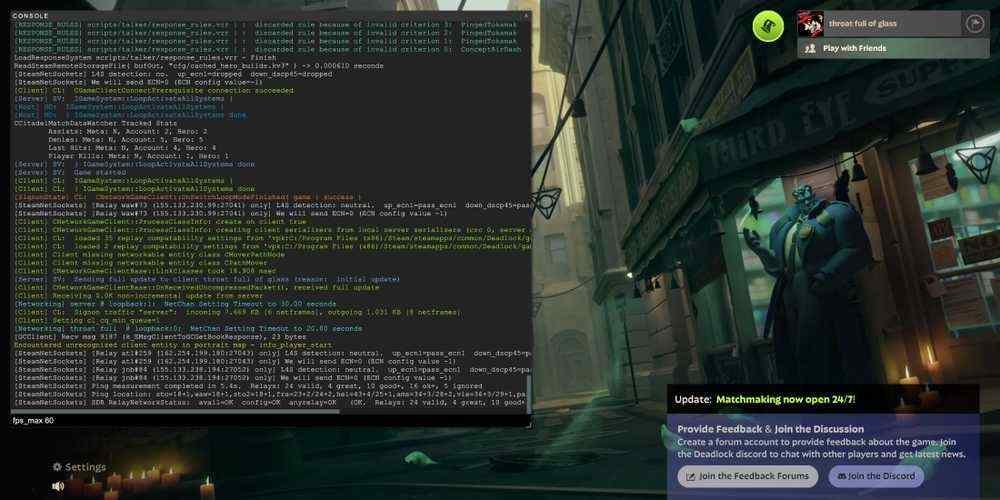
If you get high FPS in Deadlock, and it spikes up and down constantly, you’ll face excessive lag. You need to stabilize it, and believe me, I have personally used this trick on my PC, and it stabilized my framerate so it won’t go up and down. My FPS spiked between 60 and 240. You can set a permanent cap using Steam launch and with your GPU control panel too. That’s how you can do it:
- Launch the Deadlock game and hit the F7 button.
- Now type this: “fps_max 60” and hit the Enter key.
This will help you to stabilize your frame rate to 60 FPS. But remember that our goal is getting a stabilized frame rate, not just 60 FPS. If your hardware can stabilize a higher FPS, then you should try a different number too. Try to experiment with fps_max 90 or fps_max 120.
Check your Internet Connection
Since Deadlock is still in development, you’re going to require an invite and a stable internet connection to play the game. Playing with Ethernet is more recommended, but if you are playing on Wi-Fi, then you should check the download and upload speed on speedtest.net. If it’s slow, restart the router or get a high Mbps plan. I don’t think you are going to need a higher plan; just restart your router, and this will fix all the stuttering issues if they are from the router’s side.
Upgrade Graphics Drivers
Yes, you heard right! Upgrading your graphics drivers definitely helps to reduce lag in any game. Top GPU manufacturers such as NVIDIA, AMD, and Intel usually release new updates for their graphics. The newer updates help you to reduce stuttering and boost your frame rates for your Deadlock. If you are using NVIDIA, you can upgrade it through the NVIDIA App. For AMD, use the AMD Software Adrenalin Edition app, and for Intel, you can install the Intel Driver & Support Assistant from its official website.
Optimize Your Windows Settings
It’s usual to encounter excessive lag when your GPU or CPU struggles to render frame rates. Most of the time, low FPS and FPS spikes cause Deadlock lag and a stuttering screen, and there is choppiness between character movements. As Windows already provides a different section for gaming, which directly helps you to fix your game’s performance, there are several options in Windows that you can adjust to get a better and more stable frame rate for Deadlock.
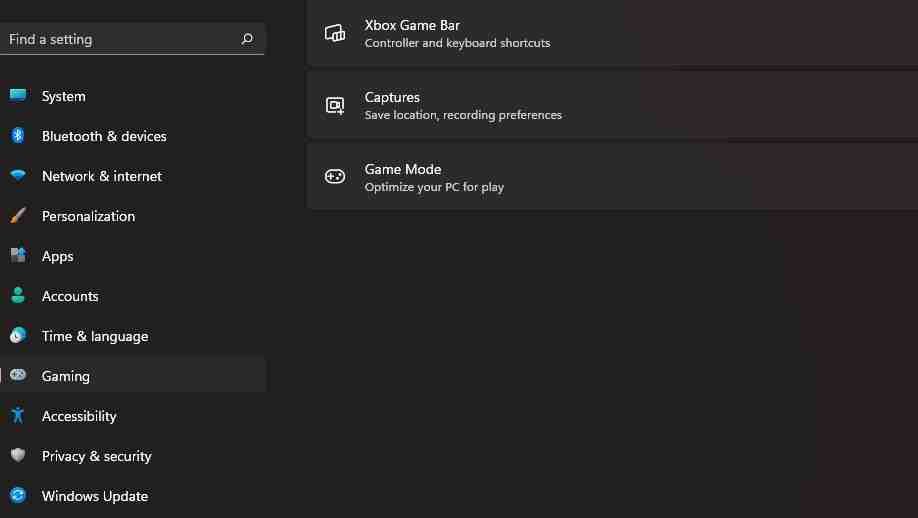
To fix FPS spikes in Deadlock game, you must adjust several settings. Search “Settings” in the search bar, open the Settings app, and select “Gaming” from the left menu.
Enable Game Mode
First, enable the Game Mode option. Just toggle it to ON; this will prioritize your Deadlock game and will stop other apps that are running in the background.

Enable GPU Scheduling
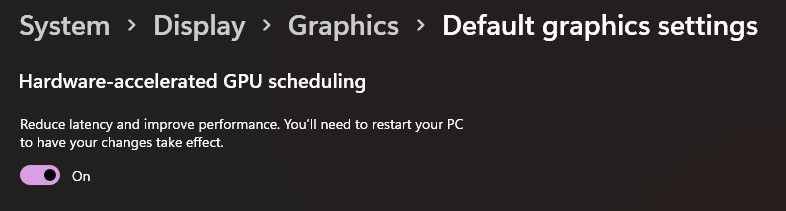
You can also enable GPU scheduling in the Game Mode section. This will help you get more responsiveness, reduce CPU overhead, and make frame rates smoother for your Deadlock. In the same settings, select the Graphics option, look for Hardware-accelerated GPU scheduling, toggle it ON, and restart your PC. The next time you’re going to play the game, it will feel more relaxed to do your things with the character.
Disable Game Bar
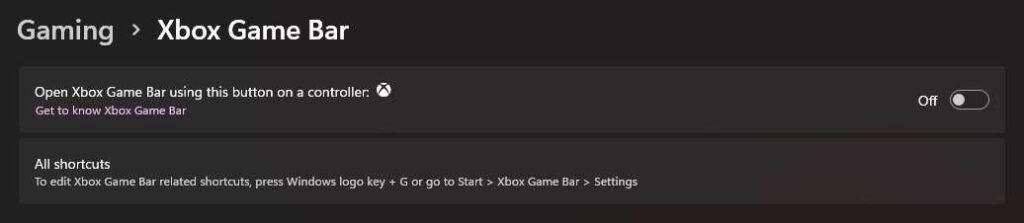
You can also disable the Game Bar to free up your background resource usage. Some say it doesn’t contribute to game performance, but I feel like it helps with micro-stutters. However, it has not that much of an impact, just a very low impact on your FPS, something around 1 to 2 FPS. But for me, those numbers matter a lot to battle in intense moments. To disable the Game Bar, look for the Game Bar option in the Gaming tab and toggle it OFF.
Turn off Capture
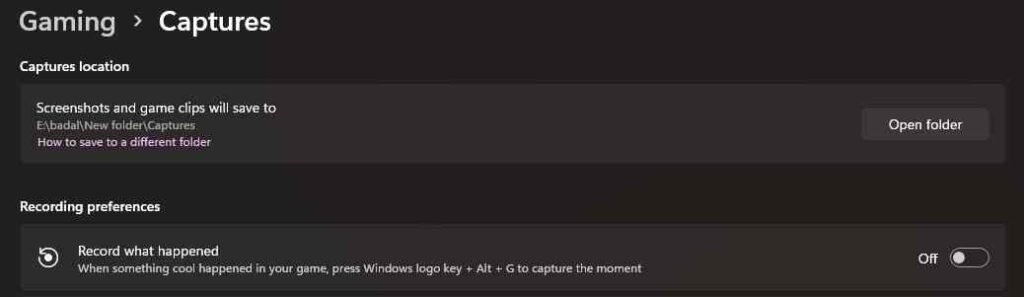
Another important change you can do is turn off your game captures. Well, if you are playing on recommended requirements, then you can avoid it, but if you are on a minimum GPU, then you should disable it right now. If you want to know mine, I play on a recommended GPU, and this feature is disabled on mine to maximize my FPS. Of course, it’s a useless feature for me unless you are a creator who loves to post their gameplay on YouTube or Insta Reels. In the Gaming section, look for the Captures option and toggle it OFF.
Optimize NVIDIA Settings for Deadlock Lag
Done with Windows optimization? Let’s head towards your graphics card. There are a few settings that you can adjust if you are using NVIDIA graphics cards:
Adjust 3D Settings
NVIDIA already optimizes every setting so you can get a smoother experience with your game. However, Deadlock isn’t fully released yet; players are enjoying the game in the development phase. As developers are still working on the game, it’s really normal to see some difficulties while playing. To fix this Deadlock FPS drop issue, you can customize some settings. Open your NVIDIA Control Panel, select Global Settings, and now change your settings as mine below:
- Low Latency Mode: On
- Power Management Mode: Normal
- Resolution and Refresh Rate: As per your monitor
- Shader Cache Size: 100GB (If you have less storage, you can set a low value)
- G-Sync: Only if your monitor supports
NVIDIA Overlay
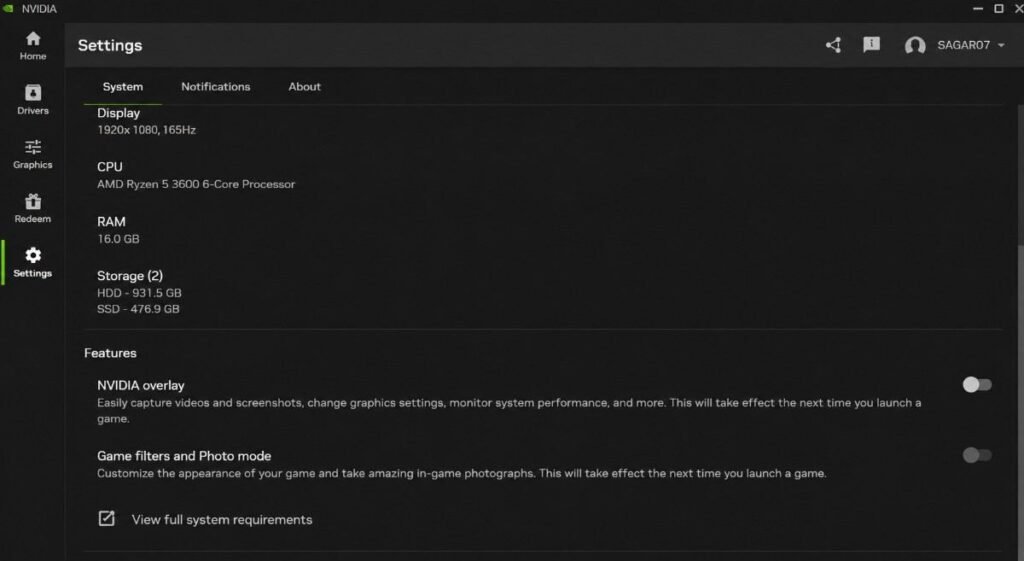
If your NVIDIA overlay feature is ON, it can cause a performance issue. The reason is that the overlay requires extra resources, and it runs over the game all the time. So disabling it here is the best option for us. To disable the NVIDIA overlay, open your NVIDIA app, go to Settings, now look for the Overlay option and toggle it OFF.
Best Deadlock In-Game Settings to Reduce Lag
Many of the players set their lowest settings in the graphics so they can play smoothly. But I hate to break it to you – you don’t have to set every single low setting to play Deadlock without lag. Not every setting has an impact on your game performance, so you can adjust a few settings so that you don’t have to sacrifice your graphics or visual quality. Here we are about to change those options that consume more GPU resources. So launch Deadlock, go to Settings, select the Video or Graphics tab, and change your settings as I mentioned below:
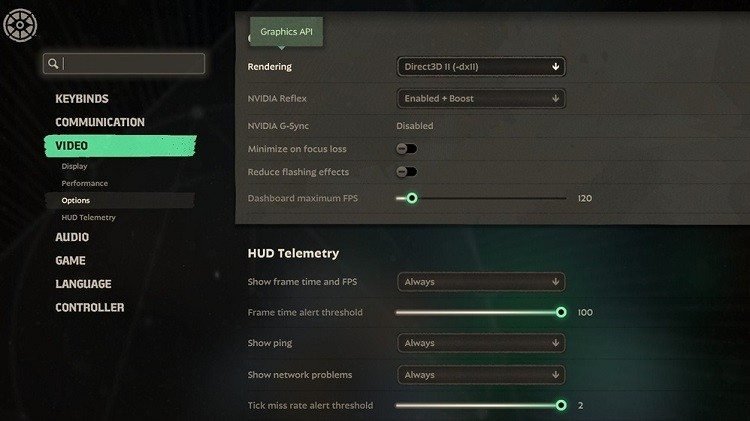
- Shadow Quality – Medium or Low
- Ambient Occlusion – Low
- Volumetric Lighting – Low
- View Distance – Medium
- Effects Quality – Medium
- Texture Quality – High (if VRAM allows)
- Motion Blur – Off
- V-Sync – Off
- Upscaling (DLSS/FSR/XeSS) – Enable if available
You have to restart the game after applying these settings.
With these settings and fixes, you can handle that Deadlock lag and Deadlock net jitter. It doesn’t matter what issue you are dealing with maybe you are encountering Deadlock FPS drop issues. But I can guarantee you that this will help you to make your gameplay better and smoother.
If you are new to Deadlock and want to play the game, ask any of your friends to send you a Steam invite, or you can join the Reddit Deadlock community. If they send you the request and you didn’t get it, or your Deadlock invite is not showing up, don’t worry, we have already posted a guide to handle this issue too. We are here to make your gaming journey better, bro! Happy lag-free Deadlock.