





Valve’s next 5v5 third-person shooter game is still in the alpha-testing phase. Only a few players who have an invitation to access it on their devices can play the game.
If your hands are itching to get a fresh experience of the Deadlock game before its global release, you must get a valid invite link from Valve (the developers) or any other player who already has access.
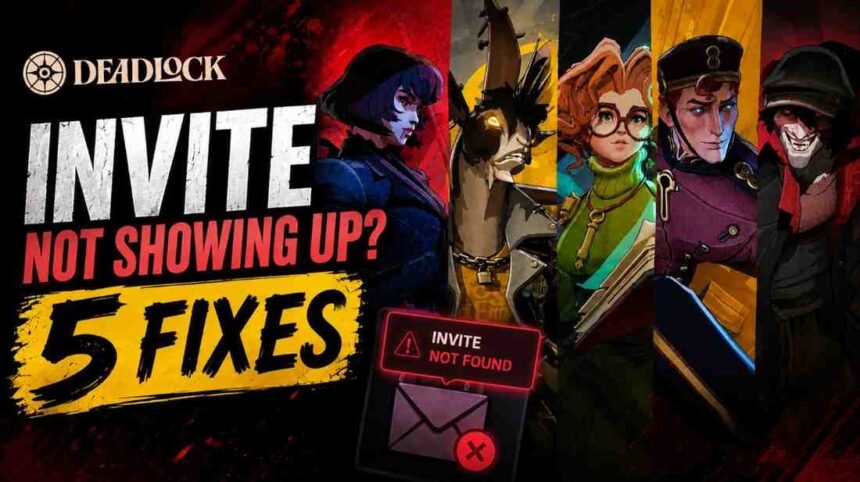
Did you do the hardest part? Somehow you arranged to get an invitation for your steam account, but you didn’t receive it. You are not alone in this, I have seen many players who experienced the same drama.
A lot of players were sharing their disappointment that they are encountering the “Deadlock invite not showing up” problem.
It’s fine, and I feel you, ’cause I have gone through the same situation last year. And the good thing for you is you don’t have to deal with it anymore. I used some troubleshooting ways that one of my Deadlock friends taught me. So basically, I’m gonna share my personal experience here that can cure your “Deadlock invite not showing up” error.
Why Is the Deadlock Invite Not Showing Up?
There could be some common culprits that can cause the Deadlock invite not showing up problem. You should check some minor but effective things first, such as stable internet connection, server down issues, outdated game versions, and more.
Check Server Status
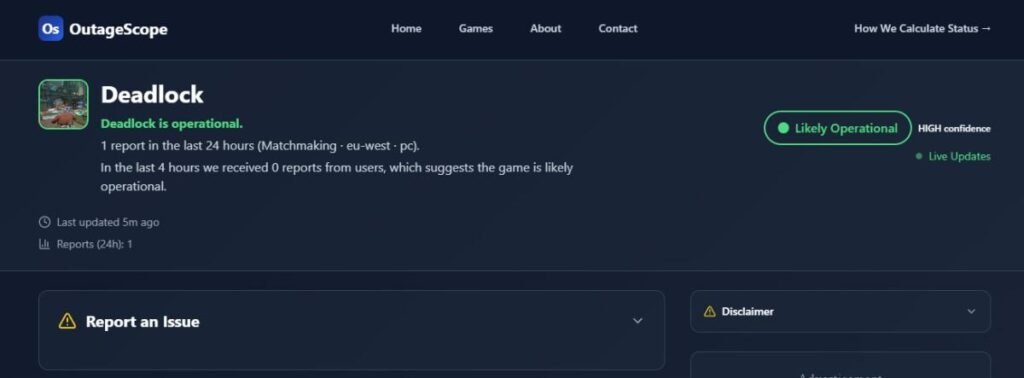
As I said, Deadlock is a free-to-play game but Deadlock is still in the testing period. While being in development mode, it is very common to encounter any technical errors or temporary glitches.
You may be experiencing this issue ’cause maybe the developers are working on a sensitive part of the servers. I won’t even be surprised if the main issue is with the Deadlock server; it can happen until the game is globally released.
So, what should you expect from this? Open the official Deadlock server page and check the server status first.
If you find out that the team has reported maintenance or server down issues (the red flag), then it’s not your problem anymore – now relax, they’ll fix it. All you can do is wait, have some patience until the servers get back to their working mode (the green flag), and try again after a few hours to see if you got your invite or not.
Check Your Internet Connection
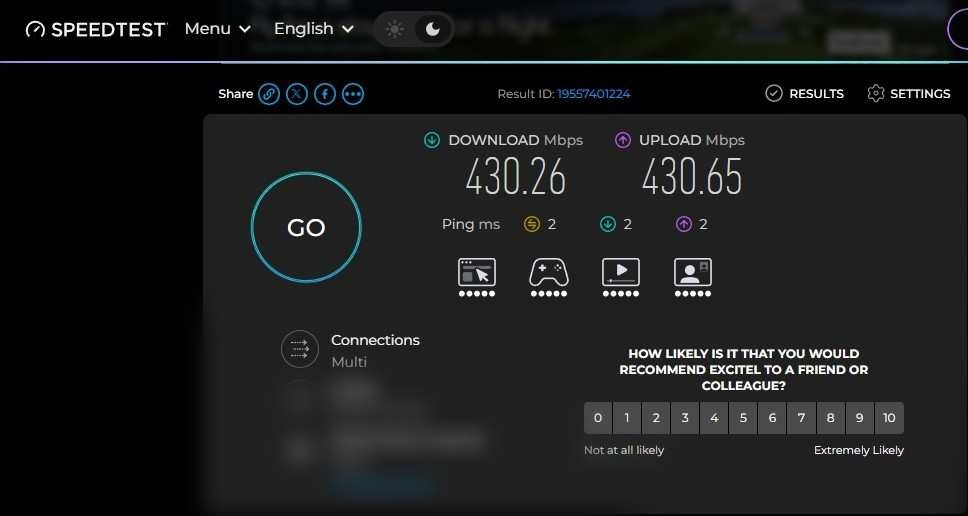
Like any other shooter game, you also need a fast and stable internet connection to play Deadlock smoothly – unless you are playing Valorant, because a poor internet connection can lead to an account ban and other penalties.
Luckily, not in Deadlock; if you have a slow connection that fluctuates, you may encounter various errors and game issues like FPS drops and all.
Check your internet speed and stability with Speedtest.net. The speed tester will show you a report of your internet connection speed, ping, and download speed. If it’s slower than a turtle, you can repair/fix it by rebooting your Wi-Fi router.
How to Fix Deadlock Invite Not Showing Up Problem?
We already looked at two common causes for invite issues and their fixes. If you are still encountering the issue, that means you need to try some other troubleshooting methods.
Restart Your PC
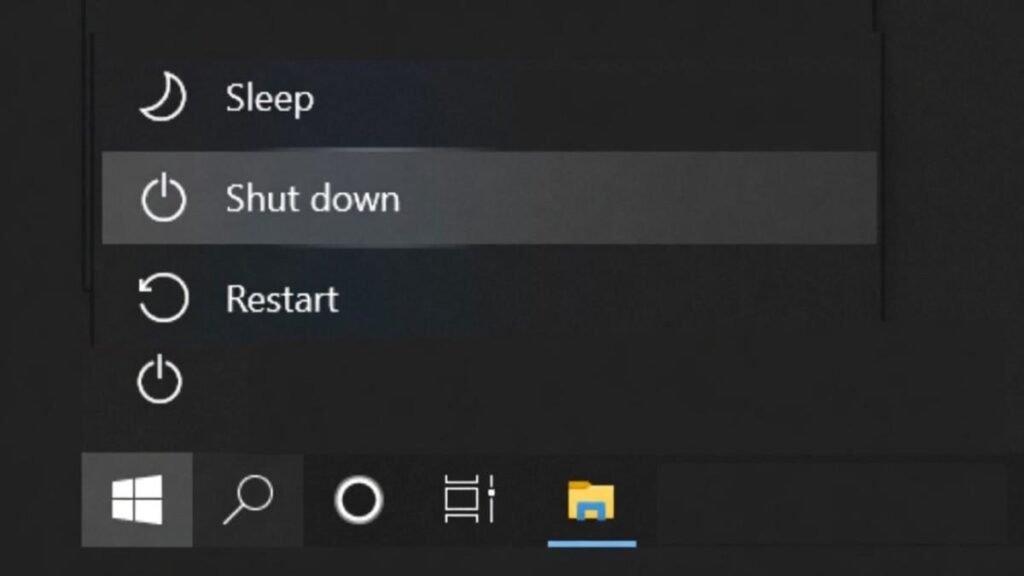
Sometimes we deal with temporary glitches and bugs that are comfortably sleeping in our system’s brain.
If there is no issue with your internet connection and Deadlock server, then maybe restarting your PC can fix the bug.
When you restart your PC, you force PC to clear all the temporary glitches and bugs that are currently present in your device.
Right after restarting, launch the Deadlock/Steam client to check if you received your invite or not.
Check the Steam Playtest Page
Now check your official Steam playtest invites page. Sometimes Steam notifications don’t show up in your Steam library or via pop-up notifications due to some technical glitches from Steam platform. Instead of panicking, why don’t you just go and open your Steam invites page directly?
- Open your preferred browser on your system – chrome, Microsoft edge or anything.
- Go to steam and login to your account.
- Now navigate to the direct page of playtests invite.
Here’s the direct link of playtest page: https://store.steampowered.com/account/playtestinvites
Verify Friend Status and Resend Invite
If you are facing an in-party invite issue, it might be because that player is not properly synced with Steam’s pending request system. Yeah, that can happen; sometimes pending request bugs pop up when Steam doesn’t recognize the player in their database, setting the user as offline or invisible. To deal with this error, you have to ask your friend to check the current status of the last invite and re-send the alpha testing invite.
I have already written a complete guide on how to resend Deadlock Invite. If you are still confused about how to resend the playtest invite, tell your friend to follow these steps.
- Your friend needs to launch the Deadlock game first.
- Click on the main menu icon from the top.
- Now, he needs to scroll down a bit and look for the “Invite Friends” option.
- Your friend will see his Steam friends list. Ask him to find your name again and check if there’s an “Invite” option or not.
- If it shows he can invite you again, that means the last invite got cancelled because of bugs.
- Once he clicks on the invite button, you will receive the playtest invite within a few hours, or at maximum, it’ll take 1-2 days.
Conclusion,
It’s just bugs and errors we have to deal with most of the time, but if you are still facing the same issue over and over, you can reach out to the Valve Corporation customer support team. They’ll help you figure out why you aren’t getting your invite to play Deadlock.
Before doing that, make sure you don’t have a limited Steam account. A limited Steam account doesn’t receive playtest invites because most of them are new accounts or have zero purchases, which often triggers errors. It’s Steam’s policy that you have to spend $5 to lift limited account restrictions. You can spend that $5 anywhere like adding Steam wallet funds, making an in-game purchase, or buying anything you’re comfortable with.