





Rocket League is a fast-paced soccer game where you hit a giant ball into the opposing team’s goal to score. Well, to play like a pro you need training, and you need to understand the core mechanics. But that’s different – if you are facing lag right now, then you can’t even do a speed flip. Many players reported Rocket League lag: “Idk what’s happening, but it feels so laggy and annoying at the same time. Every action is getting delayed.”
I understand the frustration of Rocket League lagging issues. So you are not alone in this, you can apply some basic troubleshooting methods to fix the problem. Otherwise, I have also mentioned some advanced settings that you can disable to improve Rocket League frame rates and its stability.
Why is Rocket League so Laggy?
Rocket League is one of the most beloved games in the gaming industry and in the competitive esports scene too. No matter which mode you want to play, whether it is 1v1, 2v2, or 3v3, you can make accurate shots with flawless planning with your team to win the match. But there’s no point in enjoying the game if you’re encountering lag. Below are a few significant reasons why Rocket League is so laggy:
Game Servers
Sometimes the problem is lying on the game’s side itself. It doesn’t matter if your internet is working smoothly and is stable; it’s just the game servers that cause Rocket League lag. There may be a lag between the player’s action and the game’s response because of excessive latency or server problems. Most players know this issue as server lag or server crashing; it affects you like slow response and choppy performance.
Internet Instability
Your internet connection can be a problem for Rocket League lag. Your internet router selects a path for your data to reach Rocket League, but sometimes it can take a longer route, which causes high ping and performance issues. Delaying from your slow internet connection can cause FPS drops, which isn’t lag. Lag, High Ping and FPS issues are different, so restarting your router can fix this.
Lag, FPS and High Ping Issue
As I said, lag, FPS, and high ping are different issues for your game. Many players get confused that their FPS drops are causing lag. No bro, they are different. Here, my simple table can clear your doubts about these issues.
| Issue | Why It Happens | Impact |
|---|---|---|
| Lag | Server overload, delayed game processing and sometimes because of network instability | Choppy Screen and Stuttered Gameplay |
| Ping | Poor Internet Routing or Weak Connection (mostly the reason is your home internet connection) | High ping in the game means more delay |
| FPS Drops | High graphics settings, overheating, insufficient RAM, or background apps | Low FPS means game jitter, more choppiness |
Fix Rocket League Lag with Basic Troubleshooting
Excessive lag can make your Rocket League very slow, choppy, and frustrating to play. These are some basic troubleshooting steps you can do right now to fix the lag on your Windows PC.
1. Restart your Router
Before checking some other settings, first reset your router. Resetting your internet router is the quickest and safest way to deal with your unstable connection speed. This helps you restore fast data transfer to Rocket League servers.
Do you know that software bugs and malicious programs sometimes lead to lag? So it would be really great if you also restarted your PC after resetting your internet router.
2. Background Applications
If you have a very high-speed internet connection, that doesn’t mean you won’t face any lag. If you are doing multiple tasks at the same time or running other applications in the background, this will make your internet connection struggle.
Rocket League lag issues might be caused by some other applications running in the background which are updating automatically. Yes, it matters! sometimes third-party apps can interfere with your Rocket League game files. So it would be really great if you check your Task Manager to see if there are any third-party applications running or not. If you find them, then stop them immediately; plus, you should do this before launching Rocket League on your PC.
3. DNS Flushing
DNS servers can be a problematic too if they go down, just like Rocket League servers. Millions of players use ISP-provided default DNS addresses, which can occasionally go down; your ISP will be temporarily unavailable if there are any internal errors.
To fix your Rocket League lag, you can troubleshoot the DNS server and change it to a commercially available one like Google or OpenDNS. If by chance your lag gets fixed by trying a different DNS server, keep using the new one until your original DNS server gets fixed.
Want to change the DNS server? Here, take the help of Epic Games.
Therefore, these were some of the basic settings you can change to fix Rocket League lagging issues. Now, it’s time to change your in-game settings to make your game more stable and reduce lag.
Adjust Gameplay Settings
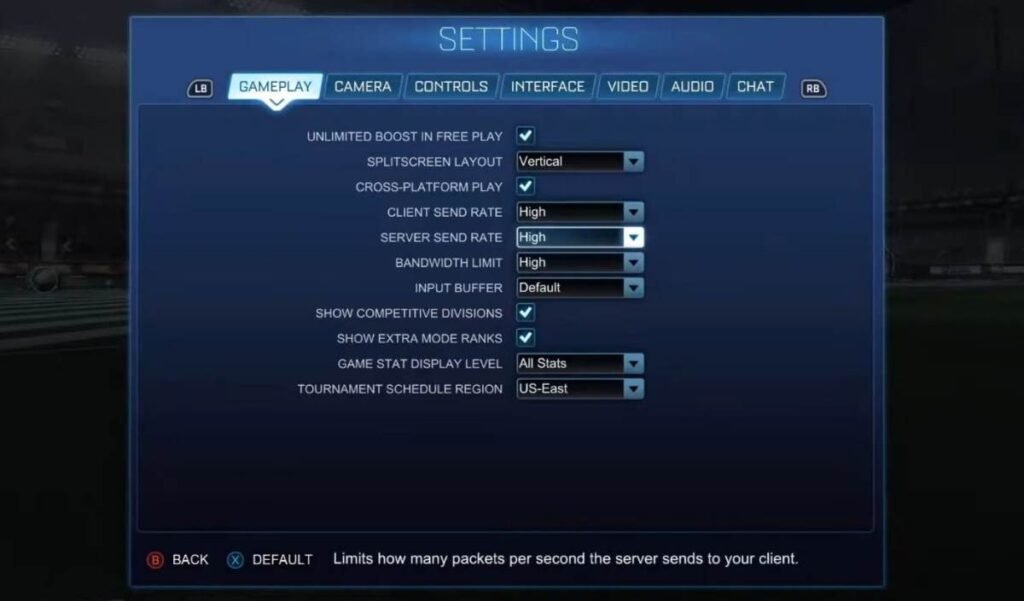
If you are experiencing excessive lag, then you can change some gameplay settings to reduce lag for smooth gameplay. There are a few settings like Input Buffer, Bandwidth Limit, Client Send Rate, and Server Send Rate which you can adjust to counter high ping and packet loss. Launch Rocket League, open settings, then select Gameplay and change your settings like I did:
- Input Buffer – CSTS
- Client Send Rate – High
- Server Send Rate – High
- Bandwidth Limit – High
Disable Voice Chat
If you are already facing lag, then don’t use voice chat. Voice chat is a feature that usually consumes more resources from your internet connection; it can also lead to more lag. Try to avoid it when your game isn’t performing smoothly. Launch Rocket League, open settings, now select the “Chat” option and click on view voice chat settings:
- Voice Chat – OFF
Adjust Video Settings
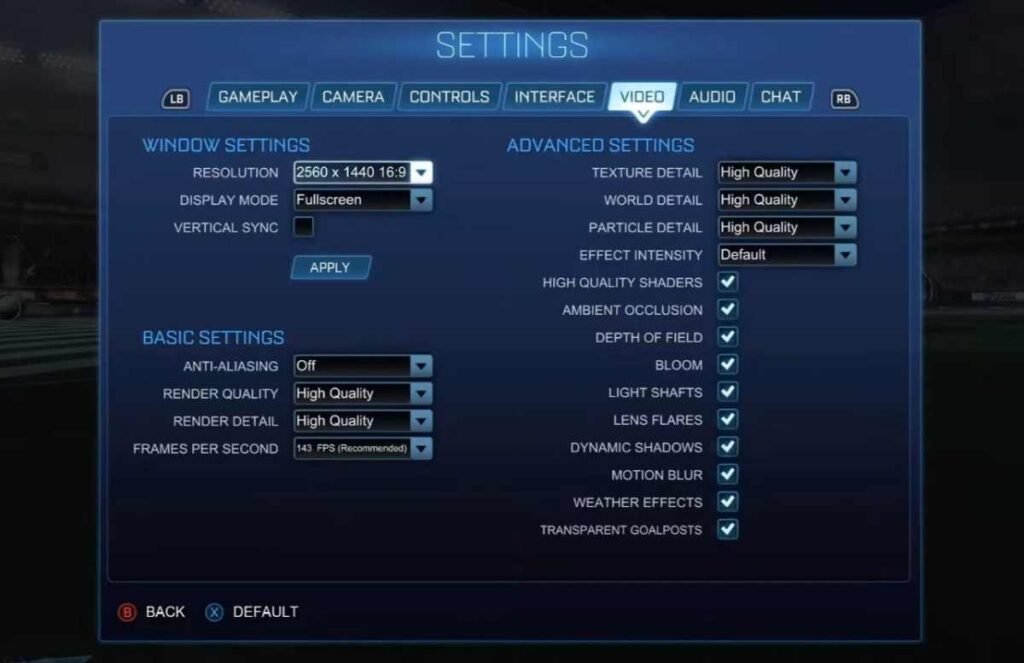
Playing with high graphics settings can cause lag. To reduce latency, you can adjust advanced graphical settings which are adding more layers to the Rocket League server. For this, launch Rocket League, open settings, select Video, and set your new settings the same as mine:
- Texture Detail – Performance or High Performance
- World Detail – Performance or High Performance
- Particle Detail – Performance or High Performance
- High Quality Shaders – Disable
- Ambient Occlusion – Disable
- Depth of Field – Disable
- Bloom – Disable
- Light Shafts – Disable
- Lens Flares – Disable
- Dynamic Shadows – Disable
- Motion Blur – Disable
- Weather Effects – Disable
- Transparent Goalposts – Disable
- Vertical Sync – Disable
- Render Detail – Performance
- Display Mode – Fullscreen
Set High Priority for Rocket League
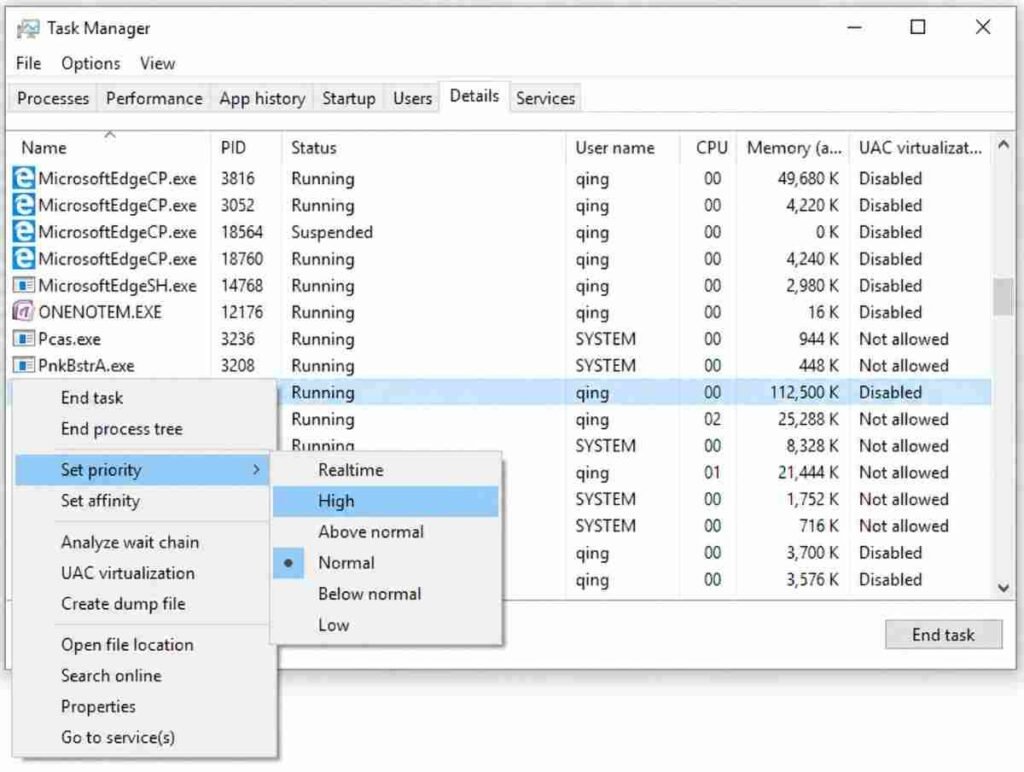
You can select a higher priority for the Rocket League game to reduce lagging problems. This feature means you are telling the Windows system to give Rocket League first priority when distributing CPU resources. Task Manager provides priority settings that you can apply for Rocket League to get rid of this high ping and latency issue. Here are the steps on how to apply this setting:
- First, launch Rocket League and open the Task Manager by pressing “Ctrl + Shift + Esc”, then go to the Details tab and find RocketLeague.exe.
- Right-click on it and select Priority > High and confirm the warning.
Conclusion,
Hopefully, these suggested fixes will solve your Rocket League lagging issue and have helped you to understand framerate drops and lag causes. As you know, Rocket League is not on Steam anymore; Epic Games bought the game in 2019, and they have been working hard on their game servers. It really works fine for me now, or you can check your system to see if it isn’t getting too old to keep up with modern gaming. If it is, try to upgrade the components one by one.